Automation Tips for Pros: Future of Work Wins

Last Tuesday, I spent 27 minutes hunting for “the final-final deck” in a mess of folders—only to realize I could’ve automated the file naming and routing months ago. That tiny humiliation is the real reason I care about job automation: not because it’s shiny, but because it rescues my attention. The funny part is that automation isn’t one big leap; it’s a handful of small, slightly boring decisions repeated until they become your default. In this post, I’m sharing the automation tips I wish someone had handed me earlier—plus a few hard numbers that explain why the Future of Work isn’t waiting for our calendars to clear.
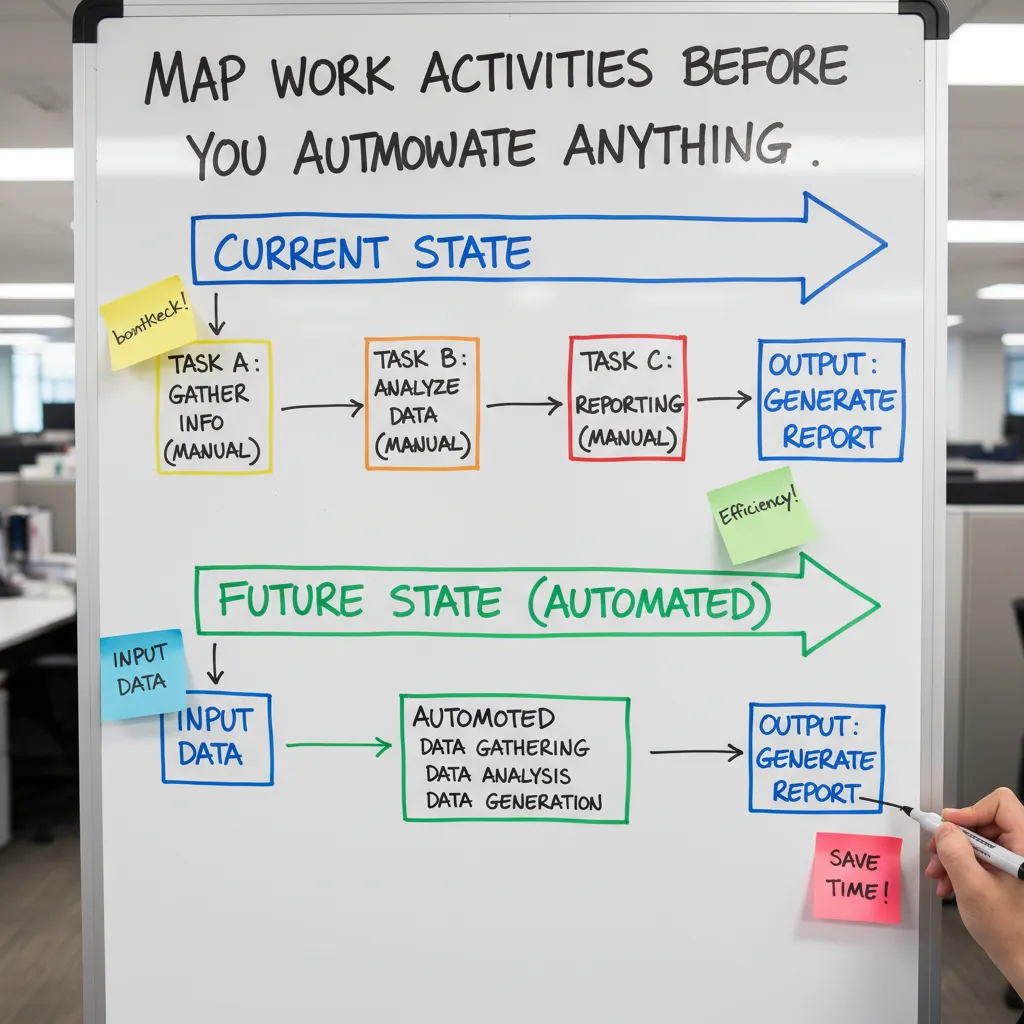
1) Map Work Activities Before You Automate Anything
Before I automate a single step, I map what I actually do. Not what my job title says, not what my calendar looks like—what my hands touch all day. This is the fastest way to find repeatable work and avoid automating the wrong thing. It also keeps “automation tips for pros” practical, because the future of work rewards people who can spot patterns in their own workflow.
Do a 2-day task diary (yes, just two days)
For two workdays, I keep a simple “task diary.” Every time I switch activities, I write it down with a rough time estimate. I don’t aim for perfection—just honesty.
- Email triage (sorting, tagging, quick replies)
- Meeting notes (capturing decisions, action items)
- Status updates (Slack/Teams check-ins, weekly summaries)
- Reporting (pulling numbers, formatting, sending)
By day two, the repeats show up. Those repeats are where job automation usually pays off.
Split the job into tasks: rules vs. context
Next, I break each activity into smaller tasks and label them:
- Rules-based: clear steps, same inputs, same outputs (great for automation)
- Context-based: needs judgment, relationships, or “taste” (harder to automate well)
For example, “send weekly status update” often includes rules-based parts (pull metrics, paste into a template) and context-based parts (how I explain risk to a stakeholder). I automate the rules, not the relationship.
Use the 10-minute rule to find prime automation targets
One of my favorite automation tips is the 10-minute rule: if a task takes under 10 minutes but happens constantly, it’s prime for automation. These tasks feel too small to fix, but they quietly steal hours.
If it’s quick, frequent, and predictable, it’s probably automatable.
Think: renaming files, copying data between tools, sending the same “got it” reply, creating recurring tickets, or formatting reports.
My mildly embarrassing example: file naming chaos
I once lost an afternoon to version confusion: Final_v3, Final_FINAL, Final_FINAL_really. It felt like cleaning the garage, but digital. So I automated file naming + routing: when a document hit a folder, it got renamed with a date + project code and moved to the right place. It wasn’t glamorous, but it removed daily friction and stopped the “where is the latest file?” messages.
Create a simple automation backlog
Finally, I keep an “automation backlog” so ideas don’t vanish after a busy week:
- Quick wins: low risk, under 1 hour (templates, rules, auto-labeling)
- Medium lifts: 1–4 hours (workflows, integrations, approvals)
- Maybe never: high risk or needs human judgment (performance reviews, sensitive client emails)
This backlog turns automation into a steady habit instead of a one-time project.
2) Choose AI Tools Like You’re Hiring a Coworker
One of the top automation tips every professional should know is this: stop collecting tools and start building a system. I treat AI tools the same way I’d treat a new coworker. I don’t hire five people for the same role, and I don’t “tool-hop” every week. I pick a small, reliable stack and learn it well.
Pick three tools, then commit
To keep my workflow simple, I choose:
- One AI tool for writing (emails, briefs, proposals)
- One AI tool for data analysis (spreadsheets, trends, summaries)
- One AI tool for meeting capture (notes, action items, decisions)
The win isn’t the tool itself—it’s the muscle memory. When I stick with one tool per job, I learn shortcuts, settings, and patterns that make automation faster over time.
Set boundaries: what AI can draft vs. what I must verify
I don’t let AI “own” the final output. I give it clear lanes. Here’s my rule: AI drafts, I verify. That means I personally check:
- Sources and claims (no “sounds right” facts)
- Numbers and calculations (especially totals, percentages, dates)
- Tone and intent (does it match my voice and the audience?)
- Legal/HR-sensitive content (policies, hiring, performance, contracts)
Automation should reduce busywork, not reduce responsibility.
Build a reusable prompt library for repeat work
Instead of rewriting prompts from scratch, I keep a small prompt library for my most common tasks. I store them in a doc so I can copy/paste fast. A few that save me the most time:
- Status update (what changed, what’s blocked, what’s next)
- Customer recap (goals, decisions, risks, follow-ups)
- Project brief (scope, timeline, owners, success metrics)
Example prompt template I reuse:
Draft a weekly status update in 6 bullets. Use a clear, calm tone.
Include: progress, metrics, risks, blockers, decisions needed, next steps.
Context: [paste notes]
Wild-card scenario: if the tool quits tomorrow
I always ask: what if this AI tool disappears, changes pricing, or gets blocked by IT? If I don’t have a backup process, I’m not automated—I’m dependent. My fallback is usually:
- Export formats I can keep (DOCX, PDF, CSV)
- A manual “minimum version” checklist (what I can do without AI)
- Saved meeting notes and prompts stored outside the tool
Red flag checklist for sensitive workflows
For anything involving customers, employees, or confidential data, I run a quick check:
- Privacy: Am I pasting personal or confidential info?
- Bias: Could the output unfairly judge a person or group?
- Cyber threats: Any strange links, file requests, or data exposure?

3) Measure Productivity Gains Without Lying to Yourself
Automation feels productive fast. That’s the trap. I’ve shipped “helpful” automations that looked great in a demo, then quietly added extra steps, extra checks, and extra stress. If you want real future-of-work wins, you need a simple way to measure automation productivity gains without fooling yourself.
Pick 2–3 metrics that actually matter
I keep this tight on purpose. Too many metrics turns into a spreadsheet hobby. I choose two or three based on the work I’m automating:
- Time-to-first-draft: How long until I have something usable on the page or in the ticket?
- Cycle time per request: From request received to “done” (not “almost done”).
- Error rate or customer response time: If the work touches clients or stakeholders, quality and speed both matter.
These are simple, clear, and hard to argue with. They also map well to common professional automation tips: automate the repeatable parts, then measure what changed.
Run a tiny before/after experiment for one week
I don’t trust my memory, and I don’t trust my mood. So I run a small experiment: one week “before,” one week “after.” I do this in my hybrid setup so I’m not fooled by office day energy (you know, the day where everything feels faster because people are around and you’re in motion).
My rule: same type of tasks, same volume if possible, and I log the numbers in a simple note. If you want a lightweight template, this is enough:
Task | Metric | Before avg | After avg | Notes
Track “rework minutes” (the disguised tax)
This is the metric most people skip, and it’s where the truth lives. Rework minutes are the minutes I spend fixing, cleaning up, or reformatting automated output. If an automation saves me 20 minutes but creates 15 minutes of cleanup, that’s not a win. It’s a disguised tax.
I track rework in plain language: “Fixed formatting: 6 min,” “Corrected wrong fields: 9 min,” “Chased missing context: 4 min.” Those notes tell me whether the automation needs better inputs, better prompts, or a smaller scope.
Add a “quality buddy check” to stay honest
Once a week, I ask one colleague to review the first automated output I produced that week. Not everything—just the first one. This keeps me honest because I’m not grading my own homework.
“If you can’t show it to a peer, you don’t fully trust it yet.”
My buddy check is quick: Did it meet the request? Any hidden errors? Would they send it as-is? If the answer is “no,” I log the rework minutes and adjust.
Mini tangent: sometimes the biggest gain is emotional
One more thing I measure informally: dread. If automation removes that heavy feeling before a recurring task—weekly reports, status updates, intake triage—that’s a real productivity gain. Less dread means I start sooner, procrastinate less, and show up with more focus. That doesn’t replace the hard metrics, but it explains why some automations feel like a breakthrough even when the time savings look small.

4) Close the Skills Gap with Boring, Repeatable Practice
One of the most useful automation tips I’ve learned is that skill gaps don’t close with a big “reinvention.” They close with boring, repeatable practice. The same way I don’t wait for motivation to brush my teeth, I don’t wait for motivation to learn. I treat continuous learning like a basic habit: 20 minutes, three times a week. That’s it. No dramatic career reset—just steady reps that keep me current as automation tools change.
Make learning a small habit, not a big project
When I schedule learning like a meeting, it actually happens. When I leave it to “someday,” it disappears. A simple routine helps me build confidence with AI and automation without burning out.
- 20 minutes per session
- 3x a week (pick days you can keep)
- One topic at a time (no multitasking)
Build analytical thinking so automation doesn’t fool you
Even if you’re not a data scientist, you still need data analysis basics. Automation outputs can look clean and “official,” but that doesn’t mean they’re correct. I’ve seen dashboards, summaries, and AI-generated insights that were confident—and wrong. So I practice the fundamentals that help me sanity-check results:
- Reading simple charts and spotting odd spikes or missing values
- Understanding averages vs. medians (and why outliers matter)
- Asking: What data was used? What was excluded? What assumptions are baked in?
This is a future of work win: when I can question outputs, I can use automation faster and safer.
Create a personal “AI glossary” so you’re not nodding in meetings
I keep a running note called my AI glossary. It’s not fancy—just a list of terms I hear repeatedly, plus my plain-English definition and one example. This stops me from pretending I understand something when I don’t (which wastes time later).
| Term | My simple definition |
|---|---|
| Machine learning | Systems that learn patterns from data to make predictions or decisions |
| Prompt | The instructions I give an AI tool to get a specific output |
| Embeddings | A way to represent meaning so tools can “match” similar text or ideas |
Reality check: the pressure is real—and fixable
I’ve felt the pressure to “use AI” without real training. It’s common. Many teams adopt automation tools faster than they build skills around them. The fix is not panic—it’s a small plan and consistent practice.
Progress comes from repetition, not from pretending I already know it.
Get support: ask HR, or build a peer study circle
If your company has HR or L&D support, ask directly for training tied to your role: “What’s the approved learning path for automation tools we’re adopting?” If HR transformation is slow, I’ve found a peer study circle works: 3–5 people, one shared topic per week, and one real workflow to improve. Keep it practical—automation tips only matter when they show up in your daily work.
5) Automate for Humans: Engagement, Ethics, and Job Redesign
When I look back at the best ideas from Top Automation Tips Every Professional Should Know, one theme keeps winning: automation should serve people, not the other way around. The future of work is not just about faster tools. It’s about designing work that feels fair, clear, and worth doing. If my automation plan makes my team anxious, confused, or monitored, I didn’t “optimize” anything—I just moved the pain around.
Redesign the job: keep judgment human, automate the prep
My favorite job redesign move is simple: I keep the judgment-heavy steps human and automate the prep. That means I automate summaries, first drafts, data pulls, and routing—then a person decides what matters. For example, I’ll automate a weekly report draft, but I won’t automate the final message to leadership. I’ll automate ticket triage, but I won’t automate the decision to deny a customer request. This keeps accountability where it belongs and still delivers real time savings.
Engagement is a success metric, not a “nice to have”
Most automation tips focus on speed and cost. I also track employee engagement as a success metric. If automation makes people feel surveilled or replaceable, it backfires. People start working around the system, hiding mistakes, or avoiding tools that could help. I’ve learned to ask direct questions: “Does this workflow make your day easier?” “Do you feel trusted?” “Do you understand what the bot is doing and why?” If the answers are shaky, I slow down and redesign.
Plan for the labor market split
Another reality I can’t ignore: the labor market may split. Some blue-collar jobs can surge while certain white-collar roles shrink as automation and AI take over routine knowledge work. That doesn’t mean “office work disappears.” It means the mix changes. So my automation strategy reflects that: I invest in upskilling, I protect roles that require judgment and relationships, and I automate the repetitive parts that drain attention. In other words, I automate tasks, not dignity.
Create an automation charter (so ethics isn’t vague)
To keep things grounded, I like creating an automation charter for the team. It’s a short agreement that answers: what we automate, what we won’t, and how we escalate edge cases. We write down boundaries like: no hidden monitoring, no auto-sending external emails without review, and no fully automated decisions that impact pay, performance, or access. We also define an escalation path so when the workflow hits something weird, a human can step in fast.
A closing ritual that keeps me honest
To end this guide, I’ll share a small ritual that keeps my automation habits healthy: every month, I delete one workflow I no longer believe in. Maybe it’s noisy, maybe it’s unfair, maybe it solved last year’s problem but creates today’s friction. It’s weirdly liberating—and it reminds me that the best automation tips for pros aren’t about building more. They’re about building better, for humans, in the future of work.
TL;DR: Automate tasks, not your judgment. Map your work activities, pick a few trustworthy AI tools, close the AI skills gap with continuous learning, and redesign workflows for hybrid teams. Use data (not hype) to measure productivity gains—and keep humans in the loop.


Comments
Post a Comment