AI for Business Ops: My Ops Tools Face-Off
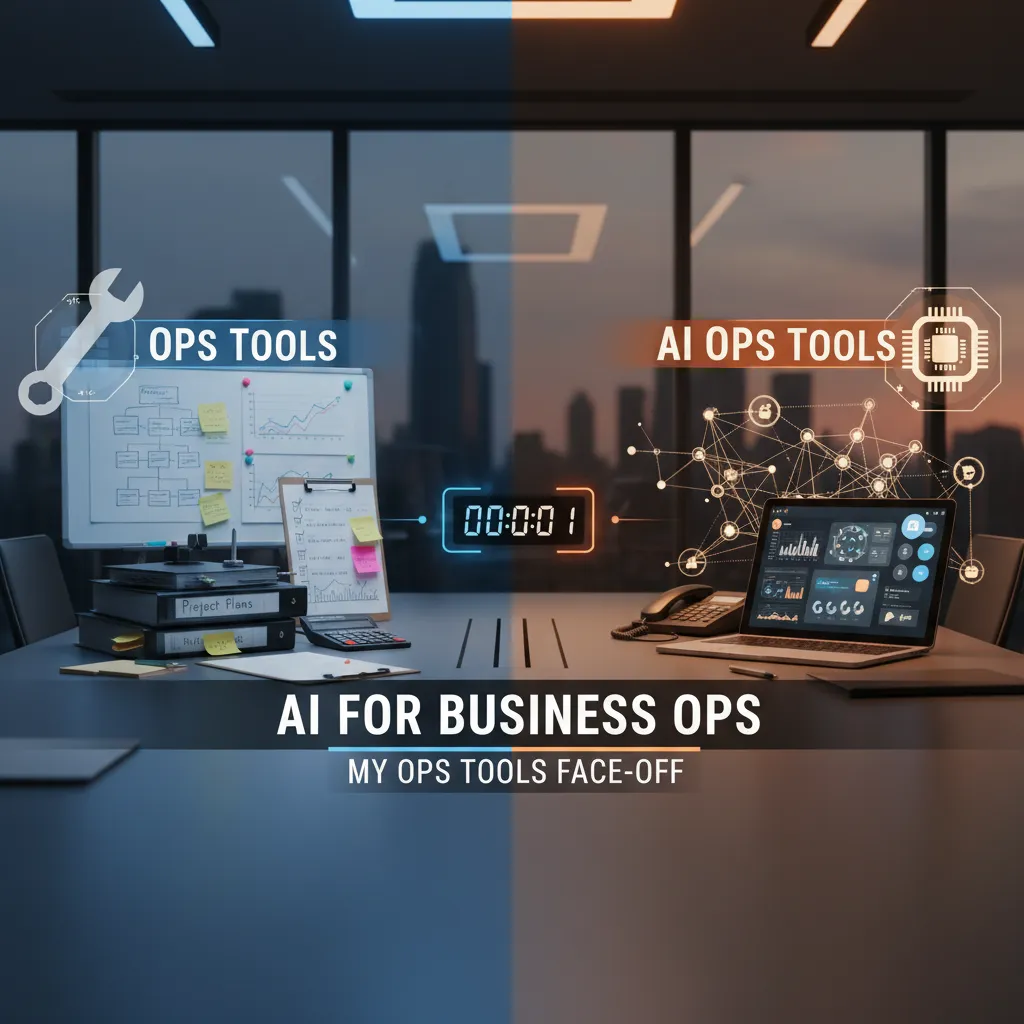
The first time I tried to “automate ops,” I built a Frankenstein chain of spreadsheets, email rules, and a webhook I didn’t fully understand. It worked—until a tiny change in a form field broke the whole thing the morning payroll approvals were due. That day taught me a very specific lesson: operations tools aren’t about flashy demos; they’re about what survives Tuesday at 9:07 a.m. In this post, I’m comparing AI Operations Tools that promise calmer workflows—executive assistants, workflow automation, no-code platforms, RPA, and even multi-agent orchestration—through the lens of what I wish I’d known before I duct-taped everything together.
The day ops broke: what I now measure first
I still remember the Tuesday when “everything was automated” and yet nothing worked. A vendor changed a field name, a teammate added one approval step, and our workflow automation quietly routed orders to the wrong queue. No alert. No clear audit trail. Just angry pings and a growing backlog.
My personal “Tuesday test”
Now I run a simple test before I trust any ops platform: does the workflow survive small changes? If a tiny edit breaks the chain, it’s not automation—it’s a fragile script with a nicer UI.
The scoring rubric I use (fast, but honest)
Based on what I learned comparing AI-powered operations tools, I score each tool on four basics:
- Setup friction: Can I build a working flow in hours, not weeks? Are connectors real, or “custom API required”?
- Observability: Do I get logs, step-level status, and clear error messages? Can I answer: “What happened at 10:42?”
- Governance: Roles, approvals, change history, and access controls. Can I stop “shadow ops” from spreading?
- Rollback options: Versioning, safe retries, and a way to undo changes without a full rebuild.
Where AI adds real value (and where it doesn’t)
AI helps most when it reduces manual ops work: mapping fields, suggesting rules, summarizing incidents, and spotting anomalies across runs. But I’m wary when “AI” is just autocomplete wearing a suit—pretty text that can’t validate data, enforce policy, or explain decisions.
“Sharp tools are great, but only if you can clean them safely.”
That’s my kitchen-knife rule for ops tools: power matters, but safety and cleanup matter more. If I can’t inspect, govern, and roll back, I don’t care how smart the blade looks.
AI Executive Assistant vs Productivity Automation (Lindy + Microsoft Copilot)
In my ops stack, I separate “keeping me on track” from “moving work through the system.” That’s why I compare Lindy (AI executive assistant) against Microsoft Copilot (productivity automation inside Microsoft 365). They overlap, but they don’t feel the same in real operations work.
Where I’d use Lindy as an AI executive assistant
Lindy fits when I need hustle help: handoffs, reminders, and the annoying busywork that blocks real ops work. I’d use it to chase loose ends without becoming the human follow-up machine.
- Handoffs: “Send this to Finance, then ping me if they don’t reply by Thursday.”
- Reminders: Nudges tied to real deadlines, not just calendar events.
- Busywork cleanup: Drafting follow-ups, summarizing threads, and keeping action items visible.
Where Microsoft Copilot earns its keep
Copilot shines when the work already lives in Microsoft 365. It’s productivity automation where my team actually operates: Outlook, Teams, Word, Excel, and SharePoint. The big win is custom AI agents that can follow company rules and pull from internal docs.
- In-context writing: Turn a Teams chat into a clean SOP draft.
- Excel help: Explain variances and build quick analysis.
- Agent workflows: Route requests, answer policy questions, and standardize outputs.
Mini-scenario: “Monday meeting fallout”
After our Monday ops meeting, I want notes turned into tasks without turning my team into task-factory workers. I’d have Copilot summarize decisions in Teams, then create a short task list with owners. Lindy can handle the follow-up loop: confirm owners accepted, remind late responders, and escalate only when needed.
My bias confession: I’m skeptical until I see meeting automation work across messy calendars.
The glue layer: Zapier AI, n8n, and the ‘workflow spaghetti’ problem
Why Zapier AI feels like a superpower
In my ops stack, the glue layer is where tools either save my week or quietly break it. Zapier AI often feels like a superpower because I can describe what I want in plain English, then let it build the first draft of the workflow. As a Workflow Automation Tool, it’s also hard to beat on reach: 8,000+ app integrations means I can connect CRM, email, spreadsheets, support, and finance without begging for API access.
Why I still keep an eye on n8n
Zapier is great for “click-to-connect” rules, but I’ve learned that business ops grows teeth. When I need more control—custom logic, branching, retries, or self-hosting—n8n starts to look better. It’s more developer-friendly, and it gives me room to evolve workflows instead of rebuilding them when I outgrow simple triggers and actions.
A cautionary tale: when automation becomes a mystery novel
The risk with any workflow automation is workflow spaghetti: zaps calling other zaps, filters stacked on filters, and a “quick fix” that becomes permanent. One day a lead doesn’t get tagged, an invoice doesn’t send, and I’m reading run history like it’s a thriller with no last chapter.
Automation should reduce decisions, not create detective work.
Practical tip: naming conventions + run logs
To keep future-me from hating present-me, I use simple rules:
- Name workflows like:
[System] → [System] | Trigger | Outcome - Add a short purpose line in the description: “Why this exists”
- Turn on and review run logs weekly (errors + skipped steps)
- Track owners:
Owner=OpsorOwner=RevOps

No-Code AI Platform showdown: Kissflow vs Microsoft Power Platform
Why Kissflow surprised me
When I tested Kissflow as part of my ops stack review, it gave me real no-code AI platform energy without feeling like a toy. The UI is simple, but the logic is serious: I could map steps, set rules, and keep people moving without needing a developer on standby. For day-to-day operations, that matters more than flashy features.
What I’d use it for in business ops
Kissflow felt strongest when the goal was predictable process automation—the kind that reduces delays and keeps approvals clean.
- Intelligent workflow routing based on role, request type, or priority
- Approvals for spend, hiring, vendor onboarding, and policy exceptions
- Standardized workflows where consistency beats experimentation
If my team needed forms, routing, and visibility fast, I could ship a working flow in days, not weeks.
Where Microsoft Power Platform flexes
Microsoft Power Platform is where I go when the workflow is only half the story and the other half is enterprise AI integration. Power Automate plus Power Apps already cover a lot, but the real advantage is how it connects to deeper AI.
- AI Builder models for document processing, prediction, and classification
- Azure Cognitive Services when I need stronger language, vision, or search capabilities
- Microsoft ecosystem fit (Teams, SharePoint, Dynamics) for larger org rollouts
Quick litmus test: if your workflow needs forms today and ML tomorrow, choose accordingly.
I’d pick Kissflow for fast, reliable ops workflows. I’d pick Power Platform when I expect to layer in machine learning, richer AI models, and enterprise-grade connections over time.
Document Processing & RPA: UiPath vs Automation Anywhere (IQ Bot)
In business ops, I still reach for RPA when the work lives in places AI can’t “reason” its way through: legacy apps, weird UIs, and those stubborn screens that don’t have clean APIs. This is where bots still win—clicking, typing, copying, and moving data like a patient human who never gets tired.
Where RPA still wins in real operations
- Legacy systems that only work through a desktop window
- Odd UI flows (pop-ups, timeouts, multi-step approvals)
- Stubborn ops tasks like re-keying invoice fields into an ERP
UiPath: my edge case tool when PDFs fight back
UiPath stands out for me in document processing when the input is messy. If a PDF is scanned, rotated, or full of tables that don’t copy cleanly, UiPath’s Document AI plus computer vision helps the bot “see” what’s on screen and keep moving. In practice, that means fewer brittle selectors and less manual cleanup when the document format changes.
Automation Anywhere: cloud-native feel + IQ Bot extraction
Automation Anywhere gives strong cloud platform vibes, which I like when teams want faster setup and easier scaling. Its IQ Bot is the core angle for intelligent document processing—extracting fields from invoices, forms, and emails so the bot can route, validate, and post data downstream.
My rule of thumb
Start with document processing on one painful workflow, not the whole company.
I pick a single process (like invoice intake), define the fields that matter, and measure time saved. Once extraction is stable, then I expand the RPA steps around it.
Process mining & BPM: Appian (and why it’s the therapist)
When my ops meetings turn into “your team caused the delay” vs. “no, your handoff broke,” I reach for process mining. Not because I love dashboards, but because nobody is arguing from the same reality. Process mining gives me a shared timeline built from event logs, so we stop debating feelings and start looking at facts.
Appian’s sweet spot, based on the comparisons I’ve been reviewing, is the combo of low-code BPM and AI-enhanced process optimization. I can model the workflow, automate steps, and then use data to see where work actually stalls. It feels less like “another tool” and more like a calm therapist in the room: it listens to what the systems did, not what we remember.
How I run a “truth-finding” workshop
- Map the process in plain language (start/end, key handoffs, systems touched).
- Agree on the case ID (order ID, ticket ID, claim ID) so we track one thing end-to-end.
- Pull the event data and let Appian show the real paths, not the “happy path.”
- Highlight rework loops, long waits, and exceptions.
- Use Appian’s BPM to fix the flow: rules, routing, approvals, and automation where it’s safe.
The unexpected connection
Process mining reminds me of checking my bank statement after saying, “I barely spent anything.” Then the data shows 27 small charges that add up. In ops, it’s the same: tiny delays, extra approvals, and “quick” rechecks quietly become the real bottleneck.
When everyone has a different story, I let the data tell one story we can all work from.
Wild card: Agentforce, AI agents, and the ‘ops as a team sport’ future
In my ops tools face-off, Agentforce feels like the wild card from the “Top Operations Tools Compared: AI-Powered Solutions” set. It caught my attention for two reasons: multi-agent orchestration and AI voice that can plug into sales workflows. Instead of one chatbot doing everything, I can imagine a small “team” of agents—one to qualify, one to update CRM, one to prep a follow-up—working in parallel while I stay in control.
Why it stands out for business ops
- Multi-agent orchestration: tasks can be split across agents, which fits how ops work is already divided.
- AI voice for sales workflows: voice notes, call summaries, and next-step prompts can reduce admin work for reps.
Where I’m cautious
I’m also careful with AI agents that act inside real systems. If an agent can change pipeline stages, send emails, or edit records, I want strong guardrails. For me, the minimum bar looks like:
- Permissions that match roles (and can be limited per task)
- Logging so I can see what happened and why
- Rollback when something goes wrong
Hypothetical: a sales handoff that keeps context
Here’s the workflow I want: marketing captures intent, an SDR agent reviews fit, and an AE agent takes over—without losing the thread. The lead’s pain points, key pages viewed, and last questions asked should travel with the handoff, not get retyped three times.
My tiny 2026 prediction: the best teams will treat agents like interns—helpful, eager, supervised.

Conclusion: picking your stack without falling for shiny things
After this ops tools face-off, I keep coming back to one rule: start small, design for growth. When I’m building an “AI for business ops” stack, my order is simple: I begin with an assistant to reduce daily friction, then add workflow glue to connect systems. Next comes governed no-code so teams can move fast without breaking rules. Only after that do I reach for RPA and document AI for repetitive clicks and messy PDFs. Then I use process mining and optimization to find what’s truly slowing us down. Finally, I consider agents—but only when the basics are stable and measurable.
The one-page buying checklist I wish someone handed me is boring on purpose: Does it integrate with our core tools? Can we control access and audit changes? What happens when the AI is wrong? How easy is it to roll back? What does pricing look like at 10x usage? And my biggest reminder: test exceptions. Every “AI-powered solution” demo looks perfect until you hit edge cases like missing fields, odd approvals, or customers who don’t follow the script.
To keep process automation human-friendly, I always set clear ownership: who maintains it, who approves changes, and who gets paged when it fails. I also define escalation paths so people can override automation without shame or delay. And I plan training like it’s part of the build, not an afterthought—short guides, examples, and a place to ask questions.
The goal isn’t more automation—it’s fewer preventable fires.
TL;DR: If you want quick wins, start with an AI executive assistant (Lindy) or productivity automation (Microsoft Copilot). For connecting apps fast, Zapier AI is the top workflow automation tool (8000+ apps). For no-code BPM, Kissflow shines with intelligent workflow routing + predictive analytics. For complex document processing, UiPath or Automation Anywhere (IQ Bot) are safer bets. For process mining + BPM, Appian is the “tell me what’s actually happening” option. Developers who want control: n8n. Sales orgs with Salesforce: Agentforce for multi-agent orchestration.


Comments
Post a Comment