Monday.com vs. Asana vs. ClickUp: AI Features Compared
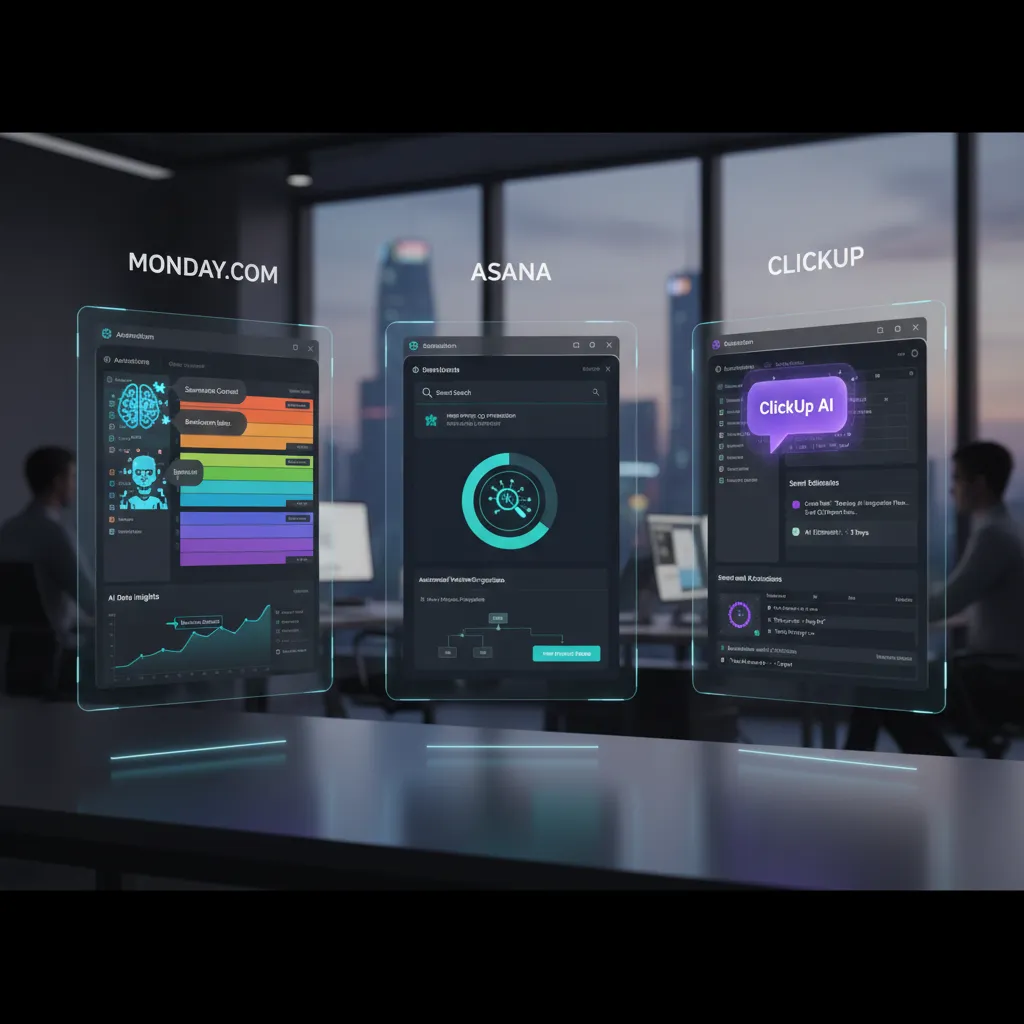
I remember the first time I handed over a tedious weekly status summary to an AI assistant — it felt like watching a colleague who never slept take notes. In this post I walk through Monday.com, Asana and ClickUp from that slightly nerdy, very practical perspective: what their AI features actually do, where they save time, and which one I'd reach for depending on the team's quirks.
AI Features Overview — quick battlefield snapshot
When I compare AI in monday.com vs. Asana vs. ClickUp, I start with a simple “battlefield” checklist. I’m not looking for magic—I’m looking for repeatable help that saves time and reduces mistakes.
My immediate checklist
- Summarization: Can it turn long updates into a clean status I can share?
- Task assignment AI: Can it suggest owners, due dates, or next steps based on context?
- Risk flags: Can it spot blockers, scope creep, or slipping timelines early?
- Content generation: Can it draft project briefs, meeting notes, or client updates without sounding robotic?
How each platform brands its AI
Each tool packages similar ideas with different names, which matters because it shapes how you find and use the features:
- ClickUp AI (often called ClickUp Brain)
- Asana AI Assist
- monday.com Sidekick / AI assistant
High-level strengths I notice fast
At a glance, the “feel” of the AI differs:
- ClickUp = customizability. I can push AI outputs into flexible docs, tasks, and custom fields, which is great when my workflows aren’t standard.
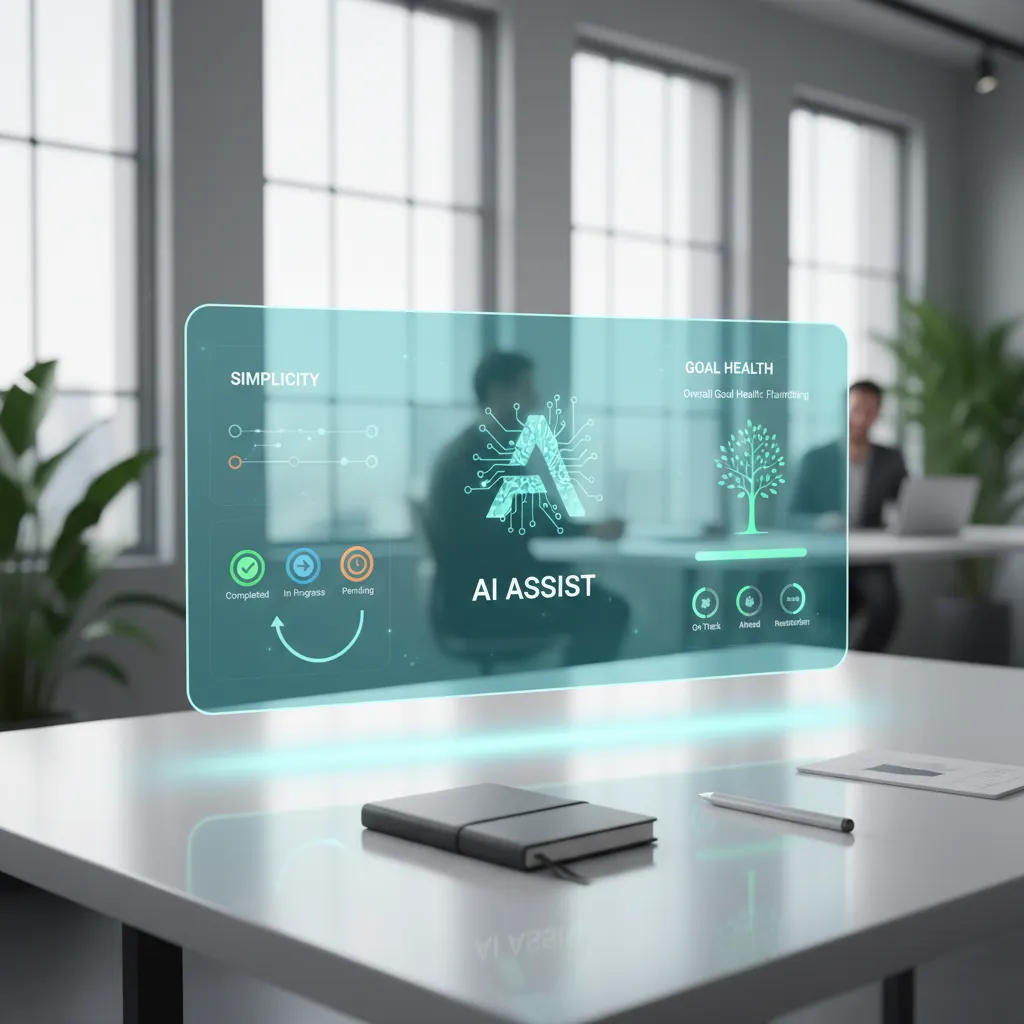
- Asana = UX & goal health. It’s the easiest for me to scan progress, connect work to goals, and keep updates readable for stakeholders.
- monday.com = visual automations & CRM. The AI fits nicely into boards, automations, and sales-style pipelines where status changes drive action.
Surprise aside: I once had Sidekick suggest a risk I’d missed—an overloaded owner across two boards. It wasn’t dramatic, but those small wins add up.
Deep dive: ClickUp AI Brain — customization and content power
When I tested ClickUp AI Brain, I focused on two everyday jobs: task summarization and doc generation. I dropped in messy notes from a project channel—half sentences, bullet fragments, and random decisions. The AI handled the chaos better than I expected, but I still had to tune my prompts to get consistent results. If I asked, “Summarize this,” I got a generic recap. If I asked for “decisions, owners, and due dates,” the output became much more useful.
Where ClickUp AI feels strongest
The biggest advantage is how ClickUp’s hierarchy and custom fields feed context into the AI. Because tasks live inside Spaces, Folders, Lists, and Docs, I could guide the AI to write content that matched the structure of the work. For example, when I added fields like Priority, Client, and Effort (hours), the AI started producing summaries that aligned with how my team actually plans work.
- Context-aware outputs when tasks are well-organized
- Better doc drafts when I specify format (agenda, SOP, brief)
- Reusable prompt patterns for recurring workflows
The trade-off: power vs. complexity
The drawback is the same thing that makes ClickUp attractive: it’s complex. To get the best AI results, I had to understand where information lives (Docs vs. tasks vs. comments) and keep fields consistent. For teams new to ClickUp, that learning curve can slow down adoption of AI features.
Real example from my test
I took a 45-minute meeting transcript and asked ClickUp AI to convert it into a short action plan. After one prompt revision, it produced a clean list and I turned each item into a task with time estimates.
- Finalize scope changes (Owner: PM, 2h)
- Update timeline and dependencies (1.5h)
- Draft client update email (0.5h)
- Assign QA checklist updates (1h)
- Schedule follow-up review (0.25h)
My best results came when I treated ClickUp AI like a teammate that needs clear instructions and strong project structure.
Deep dive: Asana AI Assist — simplicity and goal health
When I tested Asana AI Assist, it felt like a tidy intern sitting next to me: calm, careful, and rarely “too creative.” In a space where AI tools can sometimes overreach, Asana’s approach is more conservative. It focuses on small, safe improvements—like cleaning up task wording, suggesting next steps, and helping me see how daily work connects to goals.
What Asana AI Assist does well
Asana shines when I want fast adoption and a clean UX. I didn’t need to “train” anything or build complex rules. The AI features fit into the product’s existing structure—projects, tasks, and goals—so the learning curve stays low. The best part for me was goal orchestration: AI Assist nudged me to keep work aligned with outcomes, not just activity.
- Fast adoption: I could use AI Assist right away without changing my workflow.
- Clean interface: Suggestions appear where I’m already working, so it feels natural.
- Goal health insights: It helps me notice when progress signals don’t match the plan.
Practical test: re-prioritization + goal health warning
In one real project, I had a list of tasks that looked “busy” but not “effective.” AI Assist suggested re-prioritizing by moving two dependency-heavy tasks earlier and pushing a low-impact task to later. More importantly, it flagged a goal health warning I hadn’t noticed: my goal status was still “on track,” but the supporting tasks were slipping and the timeline no longer made sense.
“Your goal may be at risk based on recent task movement and due dates.”
Where it feels limited vs. ClickUp
The trade-off is customization. Compared to ClickUp’s deeper configuration options, Asana’s AI Assist feels more guided and less “build-your-own.” I can’t fine-tune it as much for unique team processes, advanced automations, or highly specific outputs. For many teams, that simplicity is a benefit—but power users may want more control.

Deep dive: monday.com AI Assistant — visuals, automations and risk spotting
How Sidekick uses visuals to make AI feel practical
When I test monday.com’s AI Assistant (Sidekick), the first thing I notice is how tightly it fits the platform’s visual boards. Instead of feeling like a separate chatbot, the AI works inside the same views my team already uses—status columns, timelines, and dashboards. That matters because the “answer” isn’t just text; it’s a clearer board that helps me decide what to do next.
Automation recipes that reduce busywork
Sidekick leans into monday.com’s automation recipes, which are basically “if this happens, then do that” rules. I use these to keep work moving without constant follow-ups. For example, I can trigger alerts when a deal stage changes, assign owners when a task is marked “stuck,” or create items automatically from form submissions.
- Proactive risk spotting: it’s easier to see overdue items, blocked statuses, and workload issues in one place.
- Visual clarity: color-coded statuses and timeline views make risks stand out fast.
- Repeatable workflows: automation recipes help standardize how work moves across teams.
Strength: templates and CRM features for structured teams
monday.com shines when I need structure. The templates are strong for marketing pipelines, project intake, and especially CRM-style tracking. If your team likes clear stages, owners, and handoffs, Sidekick feels like it’s supporting a system that already makes sense. I’ve also found the CRM features useful for keeping sales activity tied to delivery work, so nothing gets lost between teams.
Limitation: advanced automations can sit behind higher tiers
One thing I keep in mind is that some advanced automation and AI-related capabilities may be limited by plan level. In practice, that means I sometimes design a workflow and then realize the best version of it requires an upgrade.
Personal note: the board visuals helped our sales lead spot a bottleneck in minutes—one status column showed deals piling up at the same stage, and we reassigned owners right away.
Automation, integrations, time tracking and native tools — the under-the-hood comparison
When I compare AI features, I also look at the “plumbing” behind them: workflow automation rules, the integration ecosystem, and whether time tracking is built in. In real teams, these basics decide if AI suggestions actually block and tackle work, or just sit on top of messy processes.
Workflow automation: power vs. simplicity
ClickUp has the most powerful automation engine in my testing. I can chain triggers and actions across tasks, lists, and statuses, and it pairs well with AI because the system can move work forward automatically after content is created or summarized. It does take more setup time.
Asana feels the easiest to use day-to-day. Its rules are straightforward, and I can create automations quickly without feeling like I’m building a mini program. For many teams, that “less friction” matters more than maximum complexity.
monday.com stands out for visual “recipes” and strong CRM-style automations. I like how clearly it shows what will happen when a status changes, especially for sales or client workflows where AI-generated updates need to trigger follow-ups.
Integrations: native first, middleware for the edges
All three connect well to common tools (Slack, Google Workspace, Microsoft, Zoom). Still, I often end up using Zapier or similar middleware for niche apps or custom flows. That’s normal, but it adds another layer to maintain.
Time tracking and native tools
- ClickUp: native time tracking is a big win for me, especially when I want AI to summarize effort or spot time sinks.
- Asana: time tracking usually relies on integrations, but its broader app ecosystem makes that easy.
- monday.com: strong native building blocks (boards, dashboards, CRM pieces) that support automated reporting.
Rule of thumb I use: more automations = more upfront setup, but the ROI usually shows after 2–3 months once the workflows stabilize.
Pricing, adoption and real-world recommendations (my playbook)
Pricing snapshot (what I actually look at)
When I compare AI features, I start with pricing because it decides who will really use the tool. Here’s the quick snapshot I keep in mind:
| Tool | Pricing note | What it means in practice |
|---|---|---|
| ClickUp | Entry plan starts at $7/user/month | Low-cost way to test AI + automation with a real team |
| Asana | Generous free tier | Great for adoption first, then upgrade when AI value is proven |
| monday.com | Tiers vary; advanced automations sit higher | Best when you know you’ll use templates, dashboards, and workflows |
Adoption advice (who each tool fits)
- Asana: I pick it for low-friction teams that want clean task tracking and quick AI help without heavy setup.
- ClickUp: I use it for custom, ops-heavy teams that love fields, views, and detailed workflows (and don’t mind tuning).
- monday.com: I recommend it for visual CRM needs and template-driven work where boards and dashboards drive the process.
My playbook: how I roll out AI without chaos
- Trial with a single team project (one sprint, one campaign, or one client pipeline).
- Track baseline effort: time spent on updates, handoffs, and status reporting.
- Turn on one automation at a time, then measure time saved weekly.
- Only after results: scale automations and AI prompts to other projects.
Small tangent: I once ROI-tested automations on a marketing sprint and recouped the setup time in three sprints—mostly by cutting status-chasing and auto-routing approvals.
Use cases, wild cards and final recommendation
Use cases: where each AI setup fits best
When I compare Monday.com vs. Asana vs. ClickUp on AI, I don’t start with feature checklists—I start with the kind of work the team does every day. For creative teams (design, content, campaigns), I find Asana is often the smoothest fit. Its AI help tends to feel like a light assistant for writing updates, summarizing work, and keeping projects clear without adding too much structure.
For ops-heavy teams (process, IT, internal requests, multi-step workflows), ClickUp usually wins on flexibility. Its AI is most useful when you have lots of moving parts and want help turning messy notes into tasks, drafting SOP-style docs, or summarizing long threads—especially if you’re willing to spend time setting things up.
For sales/CRM teams and client-facing work, monday.com stands out because it naturally supports pipelines, status tracking, and dashboards. The AI value shows up when you need fast summaries, cleaner updates, and a clearer view of what’s happening across accounts.
Wild card 1: what if an AI teammate truly auto-scheduled?
I keep thinking about a “real” AI teammate that could auto-schedule tasks based on calendars, time zones, and focus time, then renegotiate deadlines when priorities change. If that existed inside these tools, the winner would be the one with the best calendar connections and the least friction between planning and execution.
Wild card 2: a simple car analogy
I think of them like cars: Asana is a compact hybrid—easy, efficient, and great for daily driving. ClickUp is a modular off-road vehicle—powerful, customizable, but you need to know the terrain. monday.com is an elegant SUV—polished, strong for business visibility, and comfortable for cross-team reporting.
My recommendation
My final take: pick based on your workflow and your tolerance for setup. Then run a 30-day pilot with measurable KPIs like time-to-update status, cycle time per task, and how often AI summaries replace meetings. The best AI is the one your team actually uses.
TL;DR: ClickUp offers deep customization and ClickUp AI for content and task help; Asana prioritizes clarity and goal insights; monday.com focuses on visual automations and risk detection. Choose by workflow, not buzzwords.


Comments
Post a Comment